
By default, a database user can only connect to the database from the server itself (localhost), for example from your website. If you want to connect from your own computer or another server – for example with a database management program – you need to add the IP address you will connect from to the user’s allowed hosts.
Before you start: to connect remotely, you will also need the address of the database server. You can find it in the guide How to find your server details.
- Log in to your hosting panel: Log in to your new hosting service
- If you have several domains, select the right one from the list (1). Then click the Databases option (2).
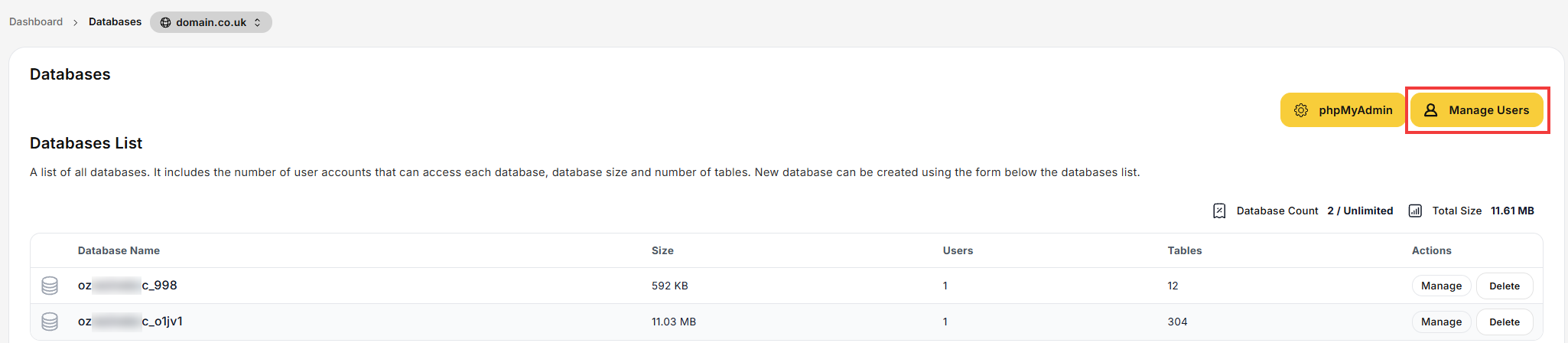
- Click the Manage Users button.
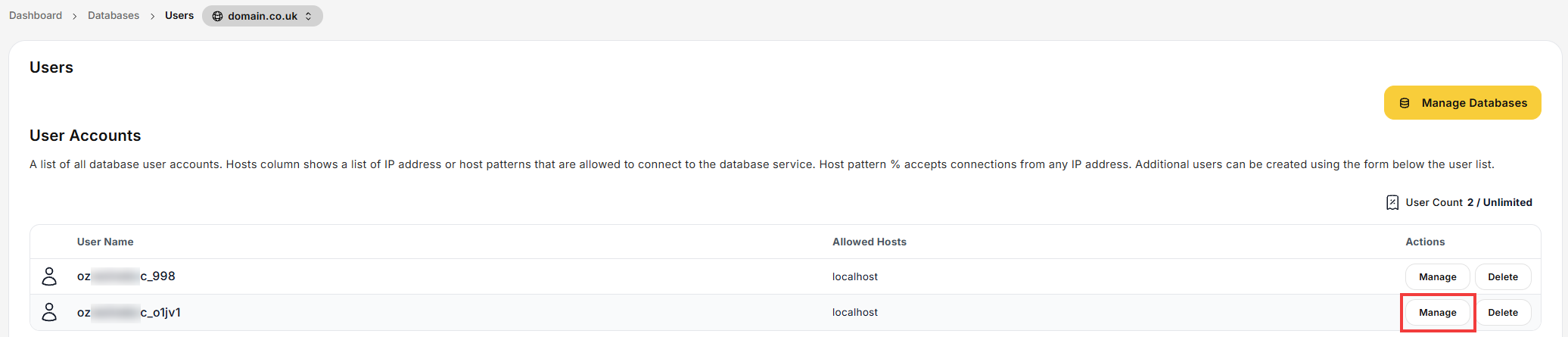
- Click Manage next to the database user you want to allow remote access for.
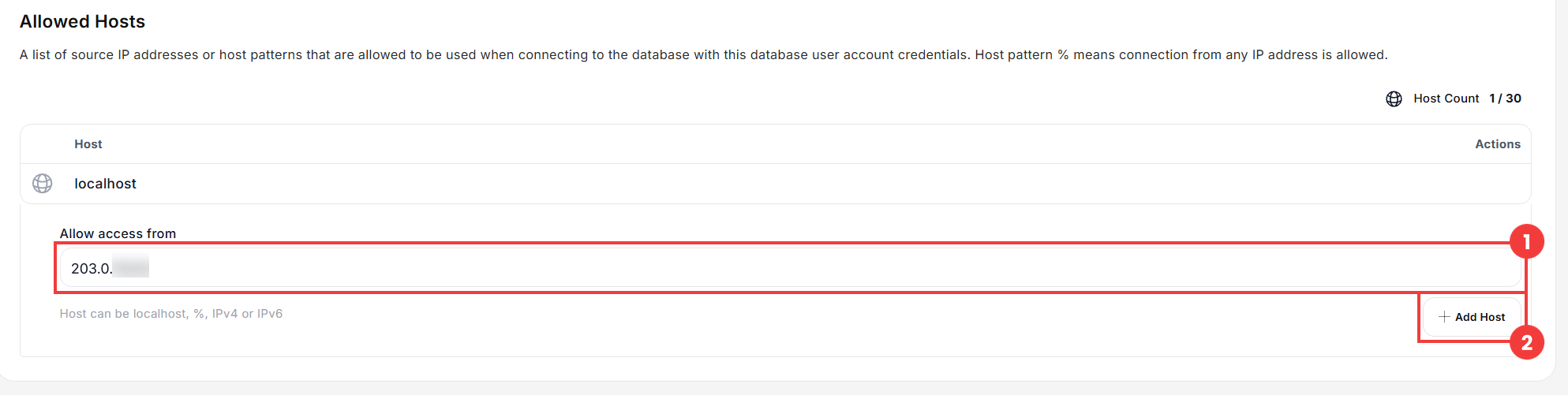
- Scroll down to the Allowed Hosts section. In the Allow access from field (1), enter the IP address you will connect from, then click Add Host (2).
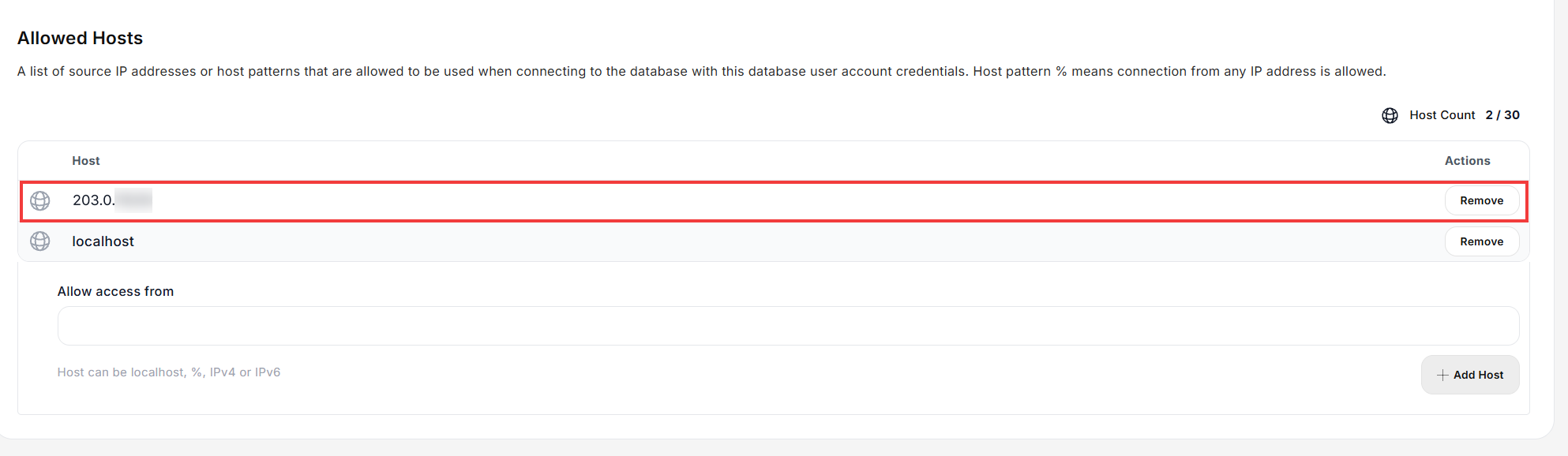
- The address appears in the list of allowed hosts. From now on, the user can connect to the database from this IP address.
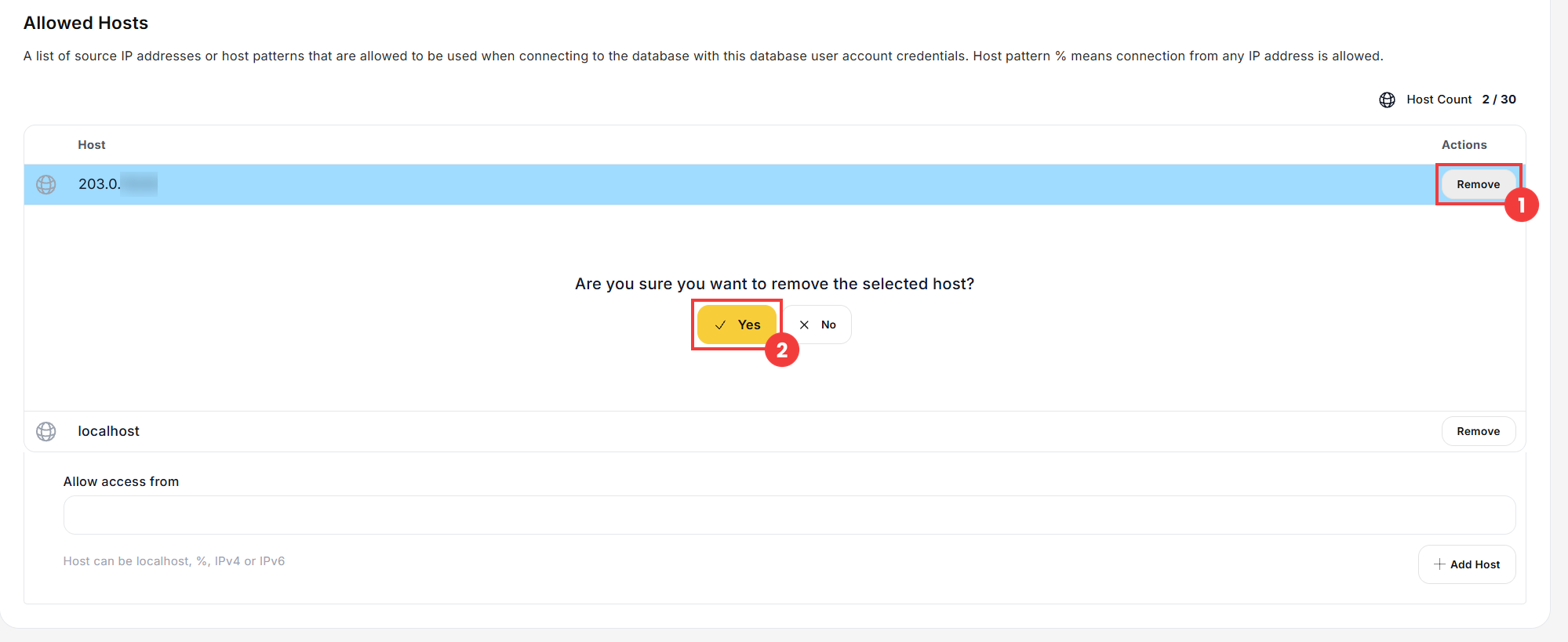
- To remove remote access, click Remove next to the address (1) and confirm with Yes (2).
 Good to know! Once you are logged in to the panel, you can also ask our assistant robo_Folks for help – it can perform many operations for you.

Note: you can also enter %, which allows connections from any IP address. For security reasons, we recommend adding only the specific IP addresses you need and removing them when they are no longer used.
