
To connect to your hosting with an FTP client, over SSH, to a MySQL database from outside or from an email program, you need to enter the address of the server and the right port. Below you will find which address you can use, where to find it and which ports each service uses.
Which server address can you use?
For every service (FTP, SSH, MySQL and email), you can use one of the following as the server address:
| Option | Example |
| Host – the name of your server | s1.cyber-folks.com (example!) |
| Server IP address | the IP address shown in the client area or in the hosting panel |
| Your domain – any domain added to your hosting account and pointed to this server | domain.co.uk (example!) |
All three options lead to the same server, so you can choose the one that is most convenient for you.
Where to find the server details
In the client area
- Log in to your client area: https://cyberfolks.com/client-login-panel/
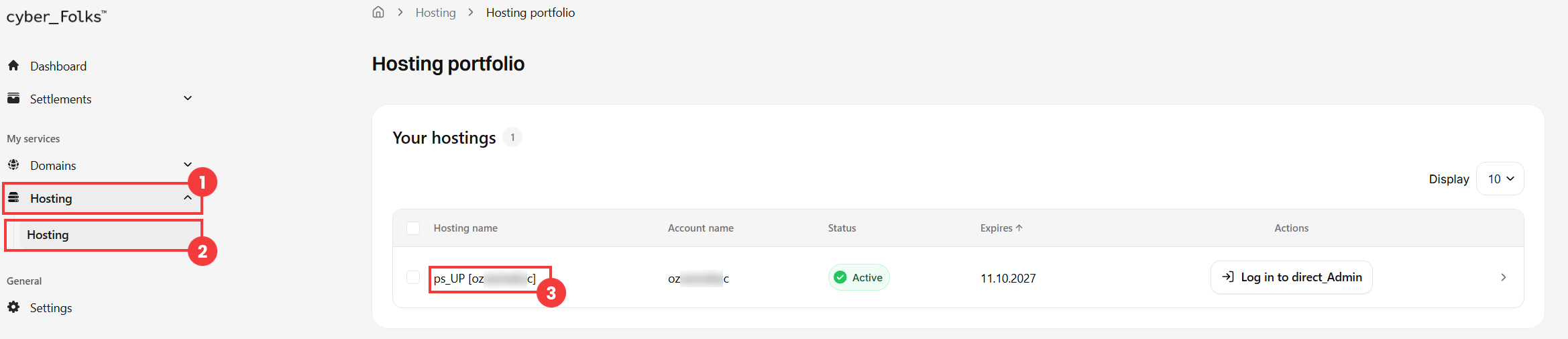
- In the left-hand menu, expand Hosting (1), then click Hosting (2). In the list of your hosting accounts, click the name of the account (3).
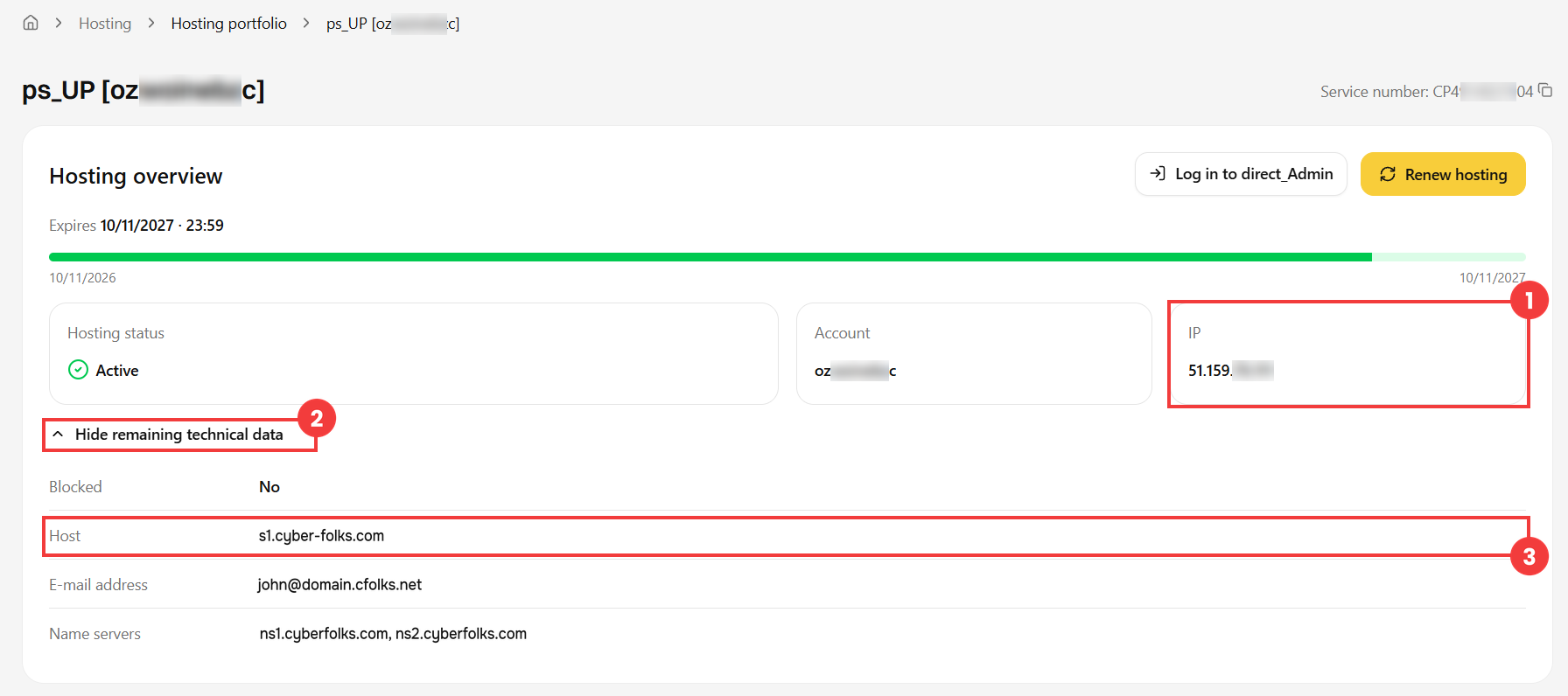
- The Hosting overview shows the server IP address (1). Click Show remaining technical data (2) to see the Host (3) – the name of your server.
- Host: after logging in, look at the address bar of your browser. The part before the colon – for example s1.cyber-folks.com – is the name of your server.
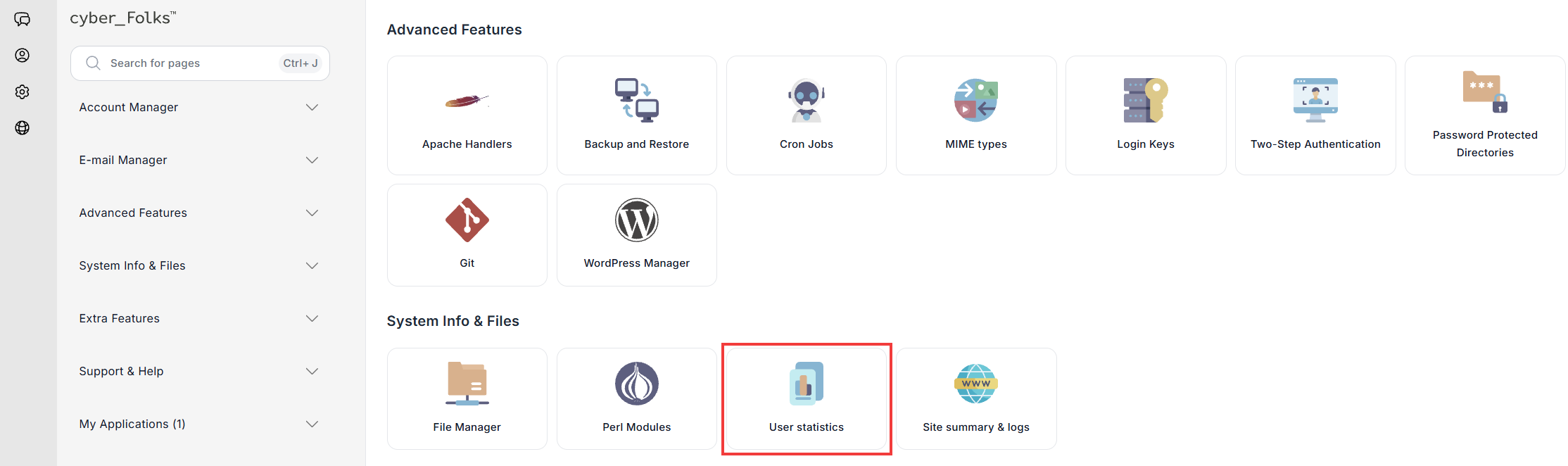
- IP address: in the System Info & Files section, click User statistics.
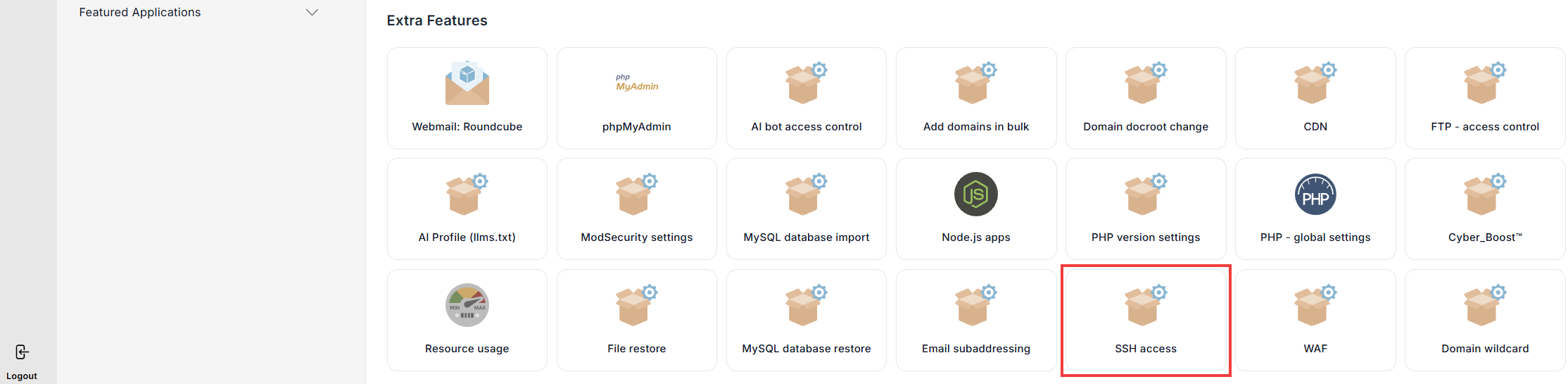
- SSH: to connect over SSH, you first need to enable it. In the Extra Features section, click SSH access.
In the hosting panel
You can also check the server details in the hosting panel. To log in, follow the guide Log in to your new hosting service.

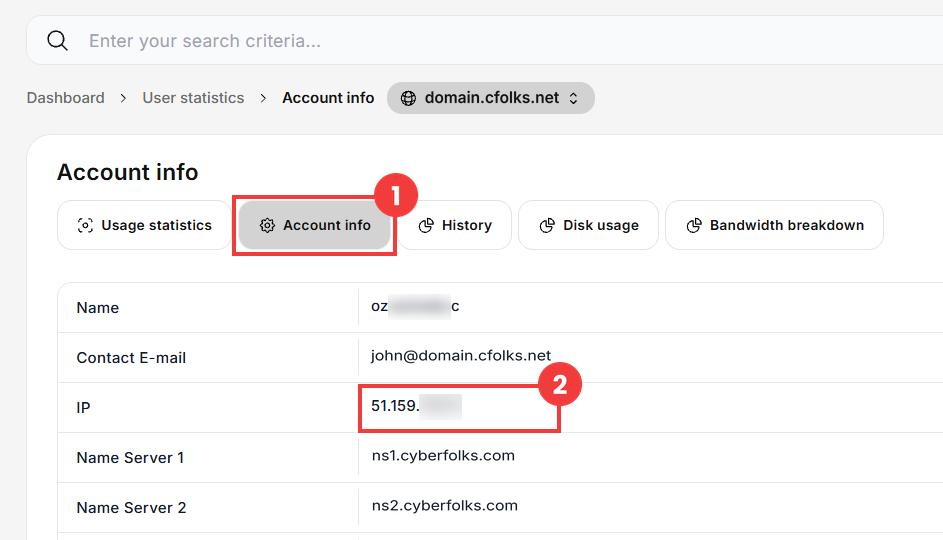
Click the Account info tab (1). The server IP address is shown in the IP row (2).
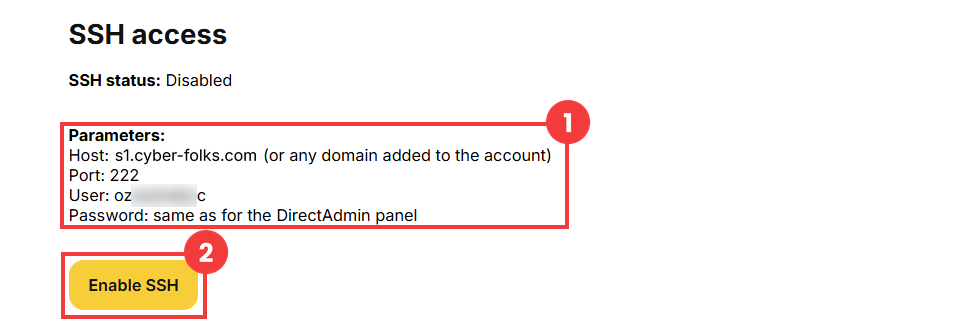
The Parameters section (1) shows your SSH login details. If the SSH status is Disabled, click Enable SSH (2).
Ports and login details
Each service uses its own port. When you set up the connection, enter the server address (host, IP address or your domain), the port and the login details from the table below. If your program offers an encrypted connection (SSL/TLS), use the port from the SSL port column.
| Service | Port | SSL port | Login |
| FTP | 21 | – | FTP account login and password |
| SSH | 222 | – | Hosting panel login and password |
| MySQL (remote access) | 3306 | – | Database user name and password |
| SMTP (sending email) | 587 | 465 | Full email address and its password |
| POP3 (receiving email) | 110 | 995 | Full email address and its password |
| IMAP (receiving email) | 143 | 993 | Full email address and its password |
