


- To add a domain to the hosting panel, first log in to it: Log in to your new hosting service
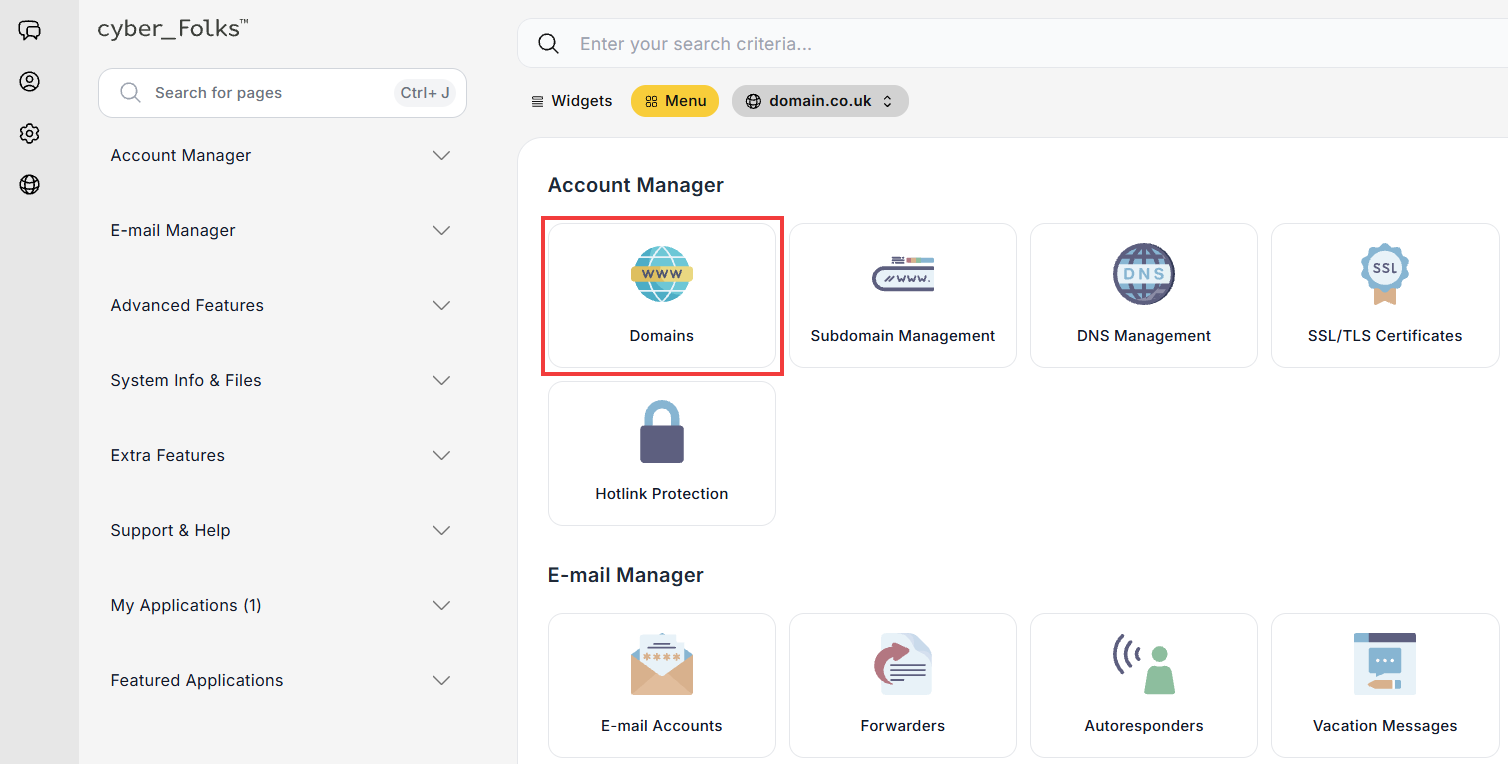
- In the panel, find the Domains option and click it.
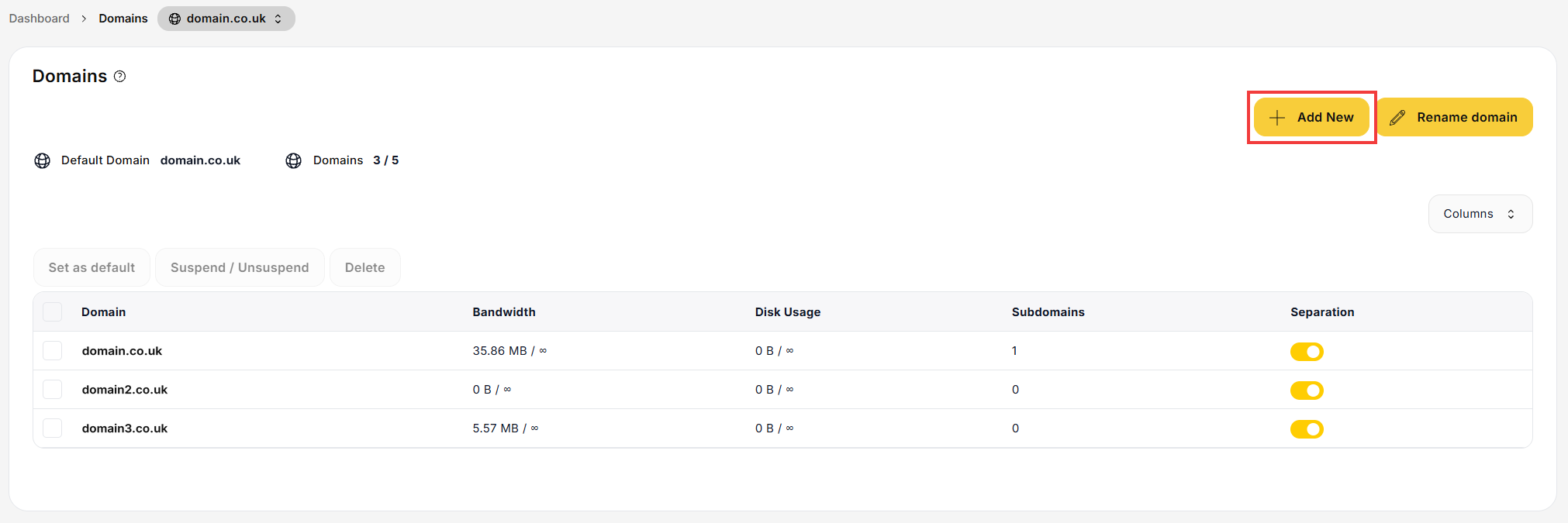
- On the next screen, click the Add New button.
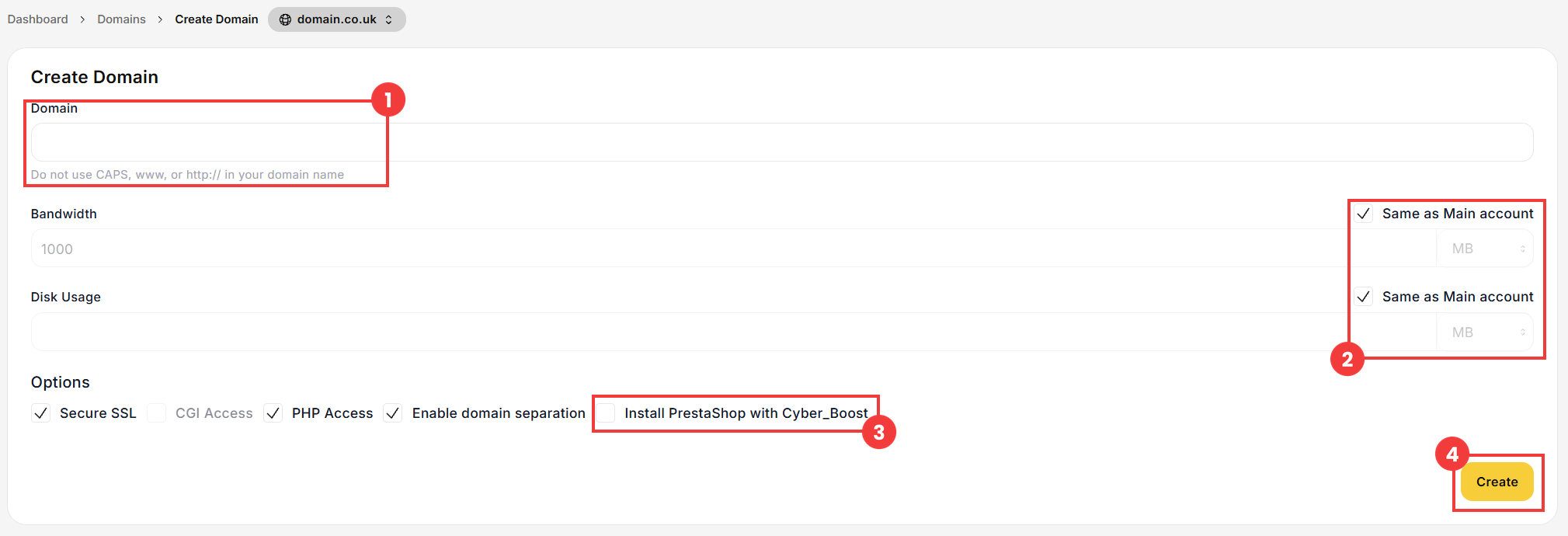
- In the form that opens, enter the name of the domain you want to add (1).
If needed, you can also set a bandwidth limit for this domain or limit the disk space it can use (2). To do this, uncheck the Same as Main account option next to the relevant setting and enter the limit value manually.
If you want to run an online shop on the domain, select the Install PrestaShop with Cyber_Boost option (3): PrestaShop and the Cyber_Boost plugin will be installed on the domain automatically.
Of course, you can skip this option and install the application later.
Save with the Create button (4). - The domain has now been added to the server. For it to display the content hosted on this server (website, e-mail), go to the panel of your domain registrar and point the domain to the cyber_Folks DNS servers:
 Good to know! Once you are logged in to the panel, you can also ask our assistant robo_Folks for help – it can perform many operations for you.
ns1.cyberfolks.com
ns2.cyberfolks.com
ns3.cyberfolks.com (optional)
