
The PHP version used by your website must be compatible with your CMS (WordPress, PrestaShop, etc.) and its plugins. Newer versions are faster and more secure, but an older website may need an older version. You can change the PHP version in two ways: in the hosting panel or with a directive in the .htaccess file.
- Log in to your hosting panel: Log in to your new hosting service
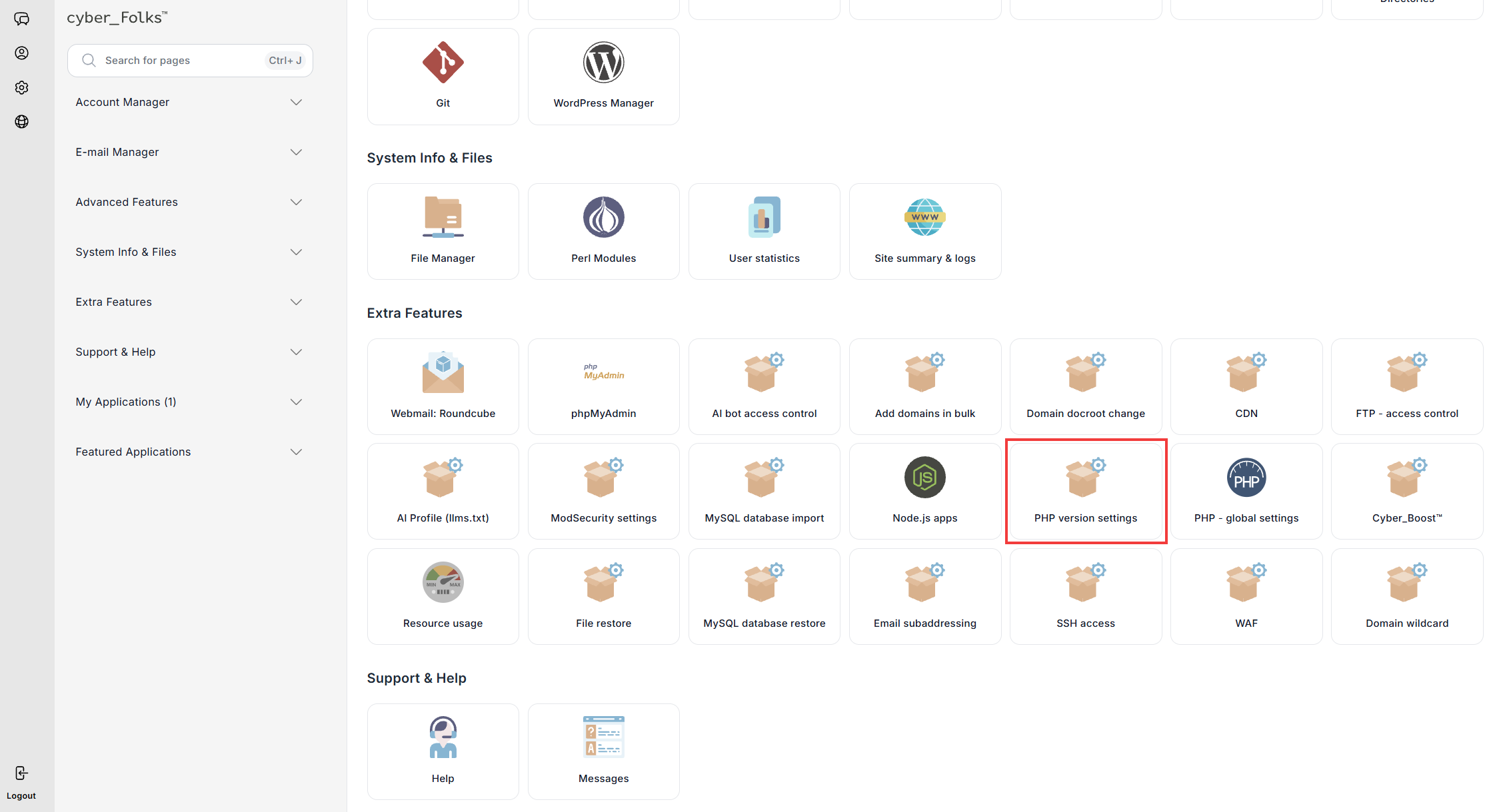
- In the Extra Features section, click the PHP version settings option.
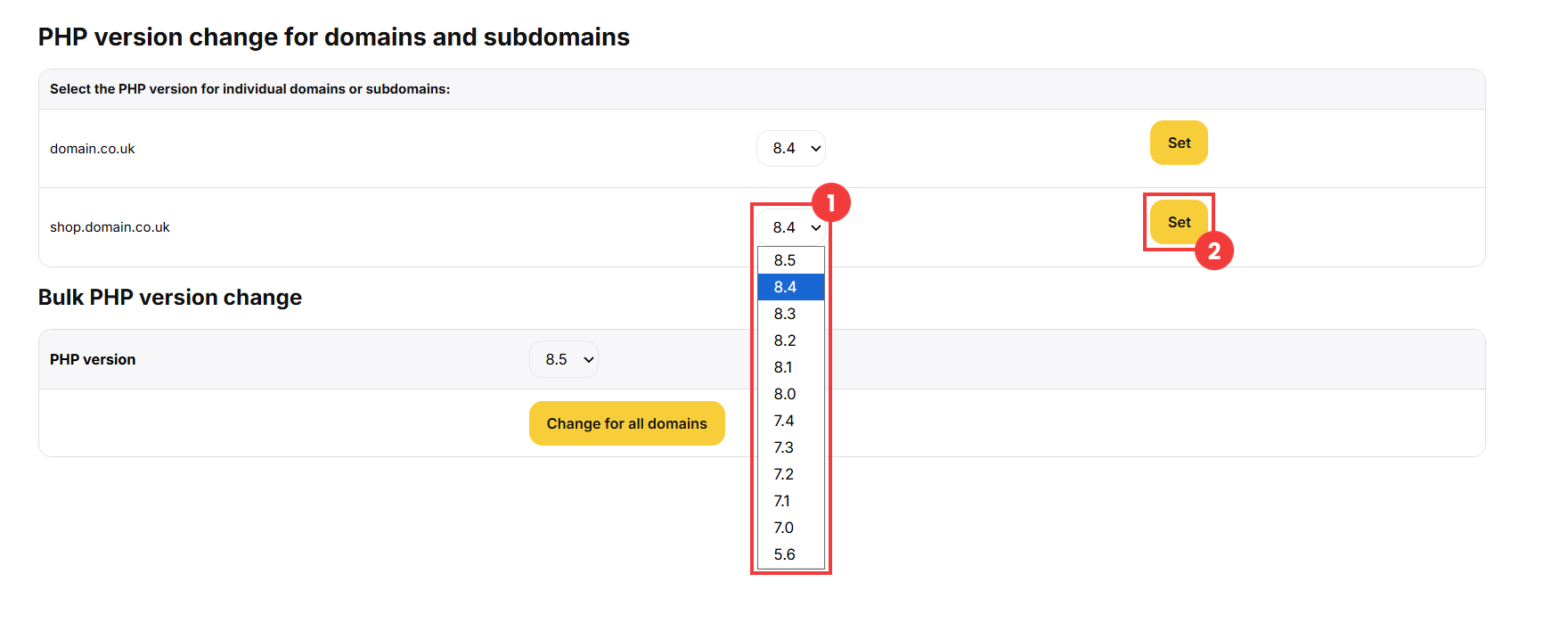
- A list of your domains and subdomains appears. Select the PHP version from the list next to the domain (1), then click the Set button (2) in the same row.
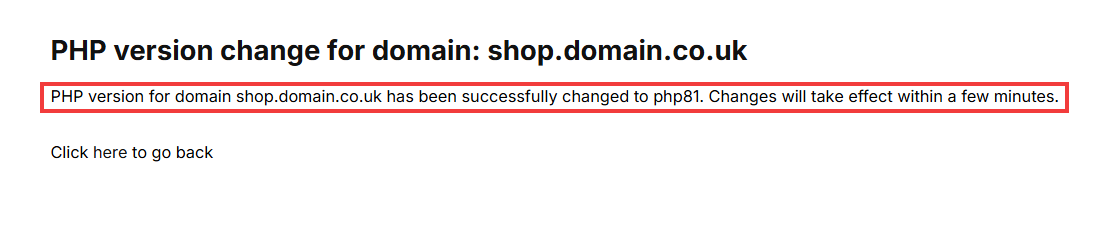
- A message confirms the version change. The changes will take effect within a few minutes.
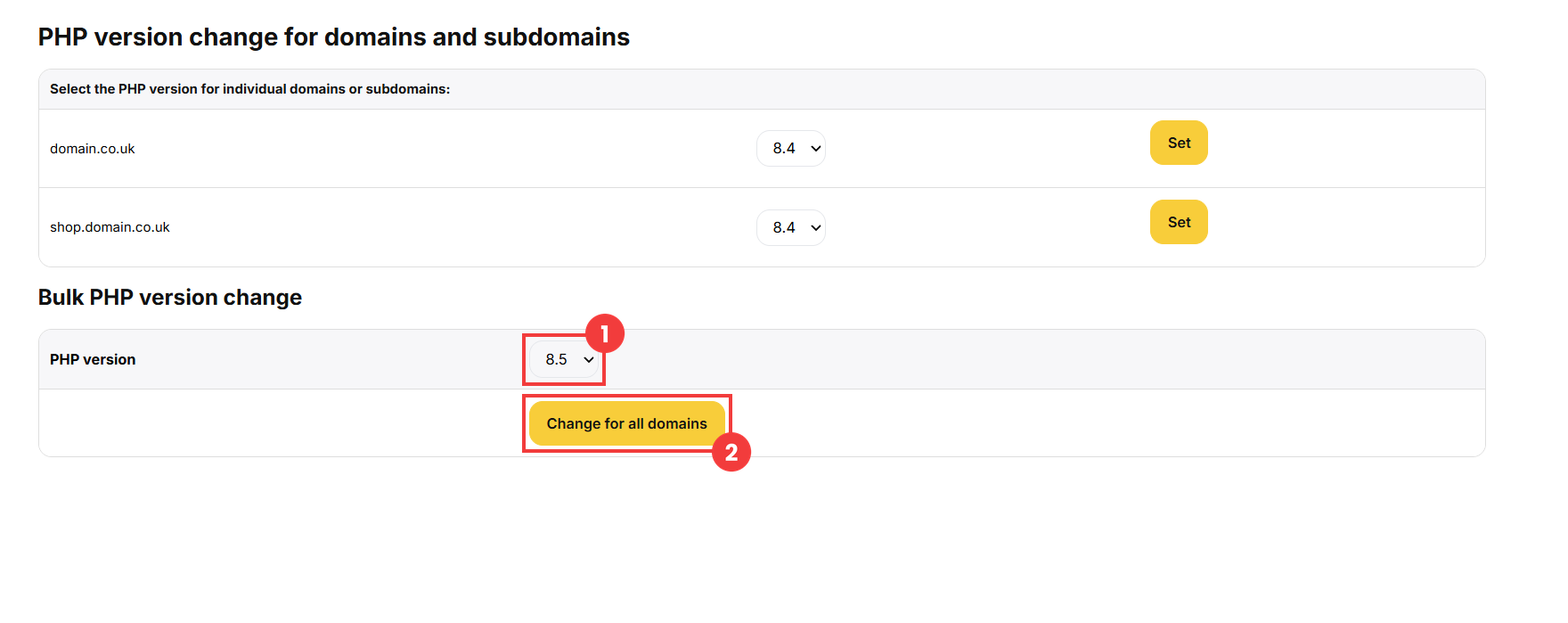
- To apply the same version to all your domains at once, use the Bulk PHP version change section: select the version (1), then click Change for all domains (2).
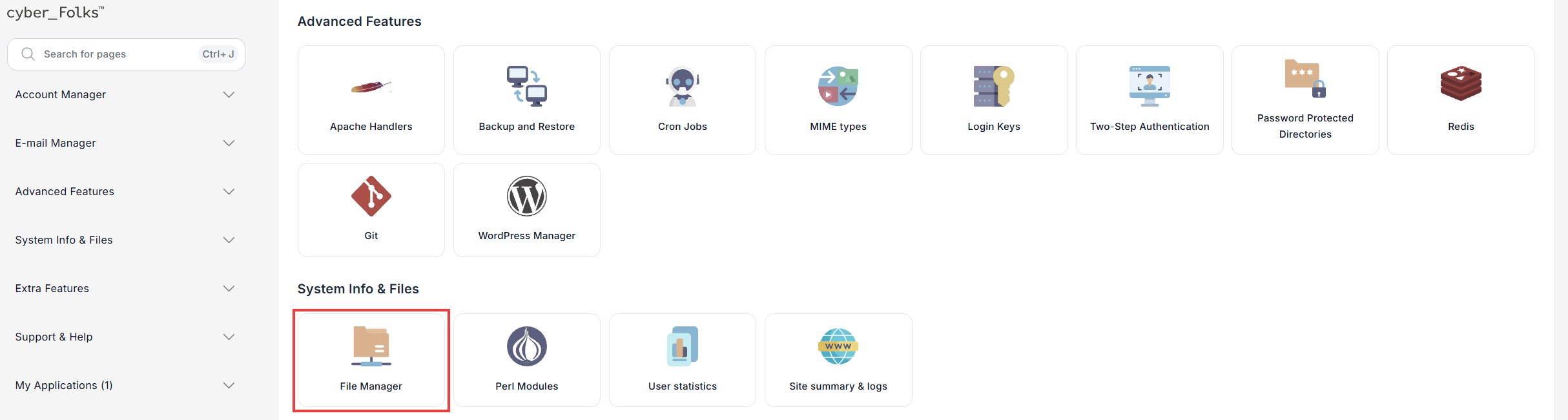
- In the System Info & Files section, click the File Manager option.
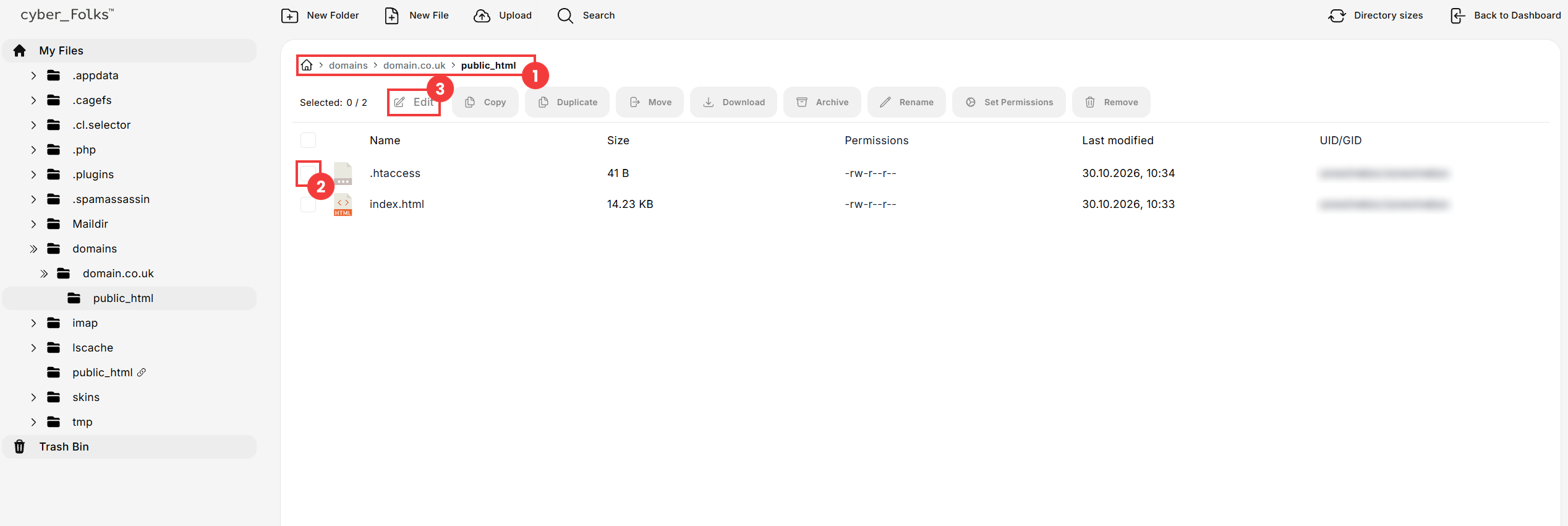
- Go to the public_html folder of the domain (domains > your domain > public_html) (1). Select the checkbox next to the .htaccess file (2), then click Edit (3).
If the .htaccess file does not exist yet, create it with the New File button. - Add (or change) the line with the directive for the PHP version you want (1), then save the file with the Save button (2). In the example below, the domain uses PHP 8.4.
 Good to know! Once you are logged in to the panel, you can also ask our assistant robo_Folks for help – it can perform many operations for you.
Method 1: change the PHP version in the panel
Method 2: change the PHP version in the .htaccess file

Available directives:
| Version | Directive to add to .htaccess |
| PHP 8.5 | AddHandler application/x-httpd-php85 php |
| PHP 8.4 | AddHandler application/x-httpd-php84 php |
| PHP 8.3 | AddHandler application/x-httpd-php83 php |
| PHP 8.2 | AddHandler application/x-httpd-php82 php |
| PHP 8.1 | AddHandler application/x-httpd-php81 php |
| PHP 8.0 | AddHandler application/x-httpd-php80 php |
| PHP 7.4 | AddHandler application/x-httpd-php74 php |
| PHP 7.3 | AddHandler application/x-httpd-php73 php |
| PHP 7.2 | AddHandler application/x-httpd-php72 php |
| PHP 7.1 | AddHandler application/x-httpd-php71 php |
| PHP 7.0 | AddHandler application/x-httpd-php70 php |
| PHP 5.6 | AddHandler application/x-httpd-php56 php |
| PHP 5.5 | AddHandler application/x-httpd-php55 php |
| PHP 5.4 | AddHandler application/x-httpd-php54 php |
| PHP 5.3 | AddHandler application/x-httpd-php53 php |
| PHP 5.2 | AddHandler application/x-httpd-php52 php |
The directive applies to the folder where the .htaccess file is located and to its subfolders. This means you can, for example, use a different PHP version for an application installed in a subfolder.
Note: before changing the version, make sure it is compatible with your website. If your website stops working properly after the change, simply switch back to the previous version.
