
You can change the password of a database user at any time, for example if it has been lost or shared with someone who should no longer have access.
- Log in to your hosting panel: Log in to your new hosting service
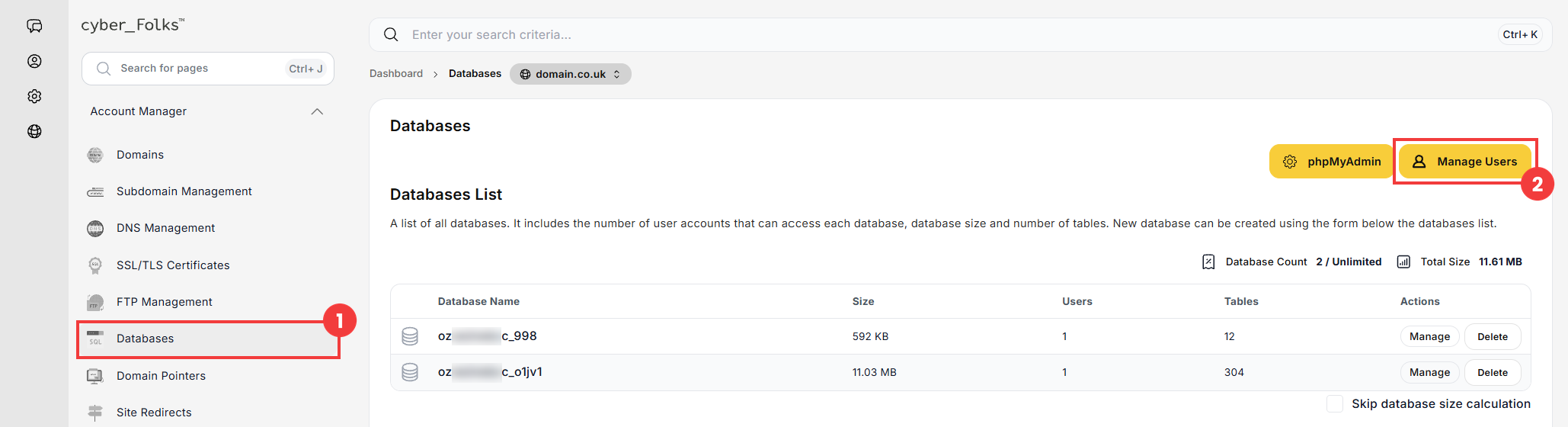
- In the left-hand menu, click Databases (1), then click the Manage Users button (2).
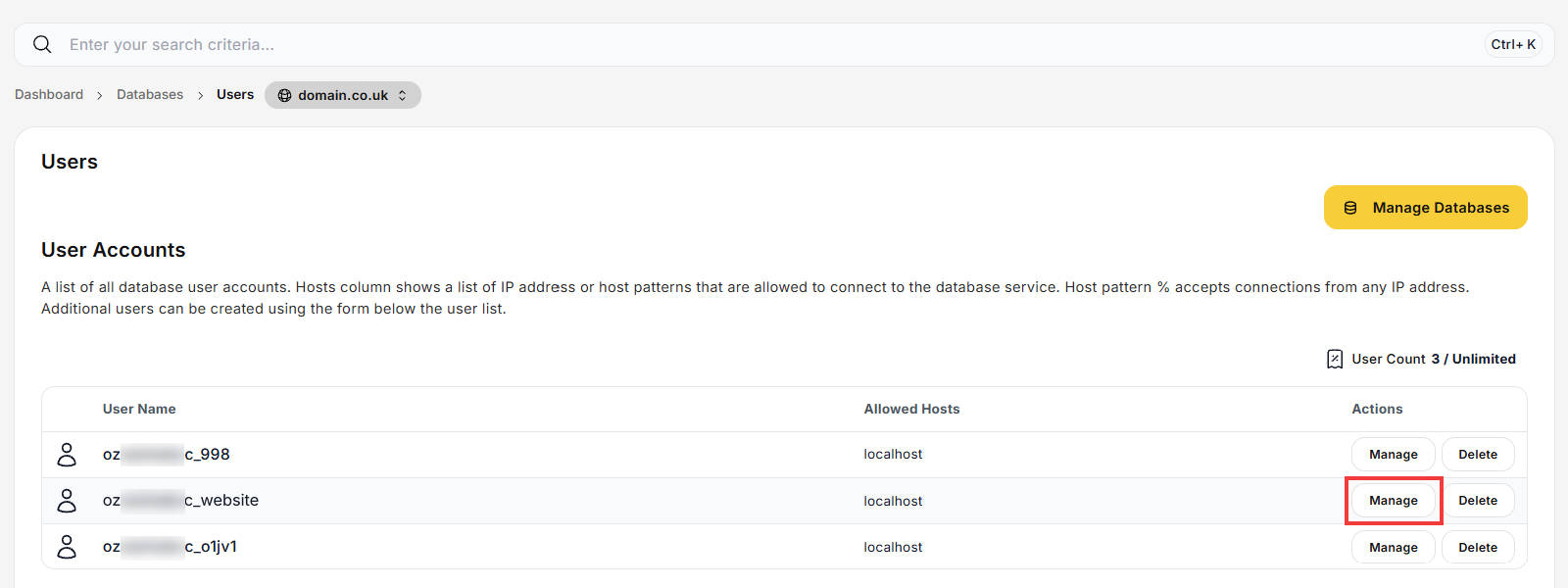
- Click Manage next to the user whose password you want to change.
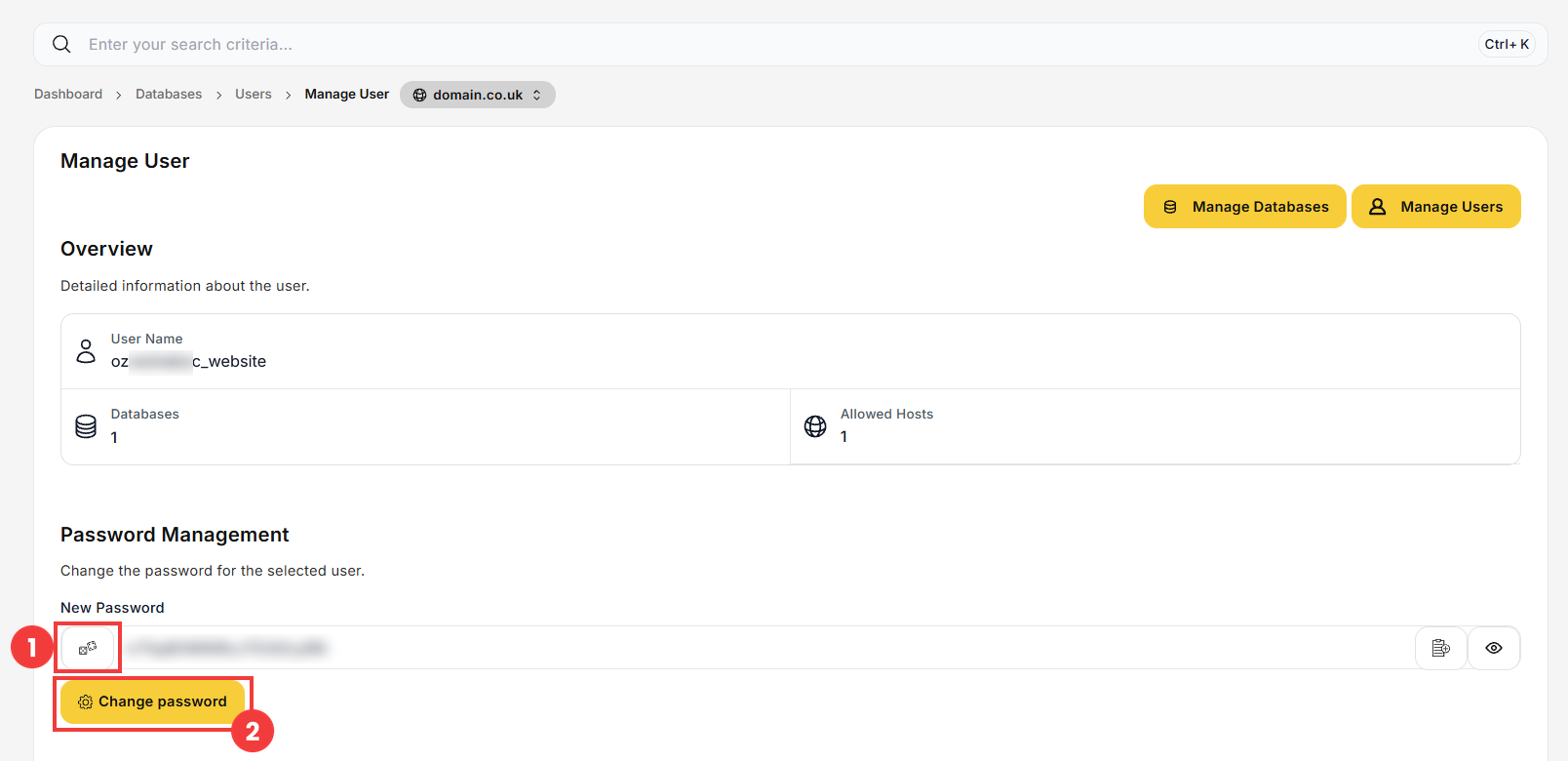
- In the Password Management section, generate a new password with the icon next to the New Password field (1) or enter your own, then click Change password (2).
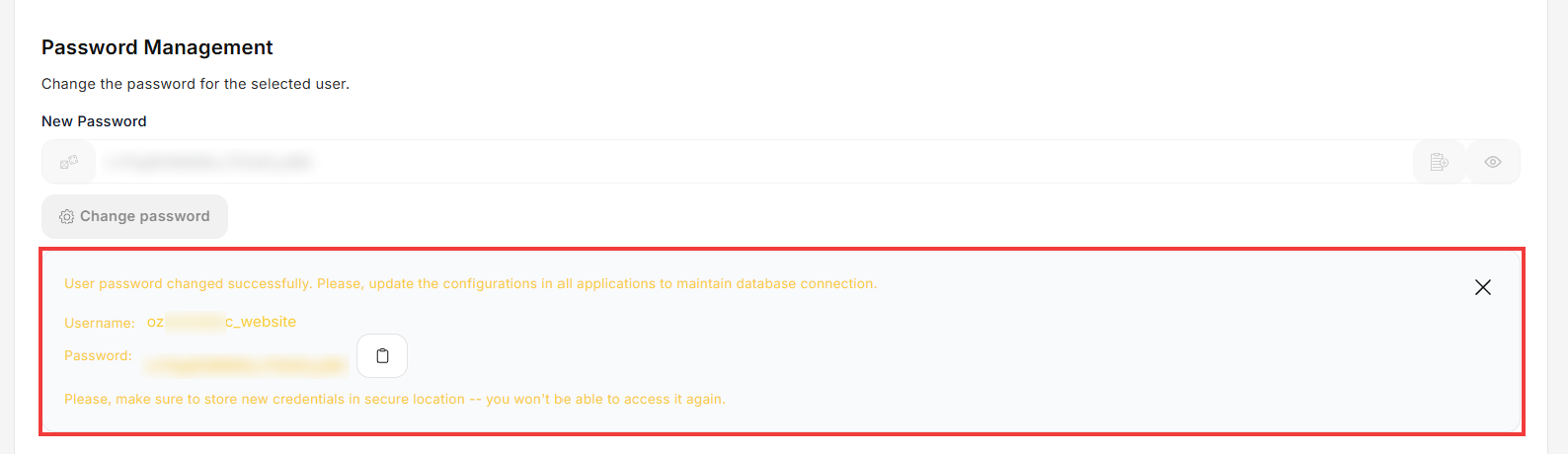
- A message confirms the change and shows the new password once. Save it in a safe place.
 Good to know! Once you are logged in to the panel, you can also ask our assistant robo_Folks for help – it can perform many operations for you.
Note: after changing the password, update it in the configuration of every website or application that uses this database (for example in the wp-config.php file in WordPress). Otherwise, they will not be able to connect to the database.
