


When you create your account in the Client Panel, you provide a main email address to which we send pro forma invoices, invoices and information about server maintenance.
You can also add another contact, for whom you can enable authorization as well as financial and technical notifications. Here is how to do it.
- Log in to your Client Panel: https://cyberfolks.com/client-login-panel/
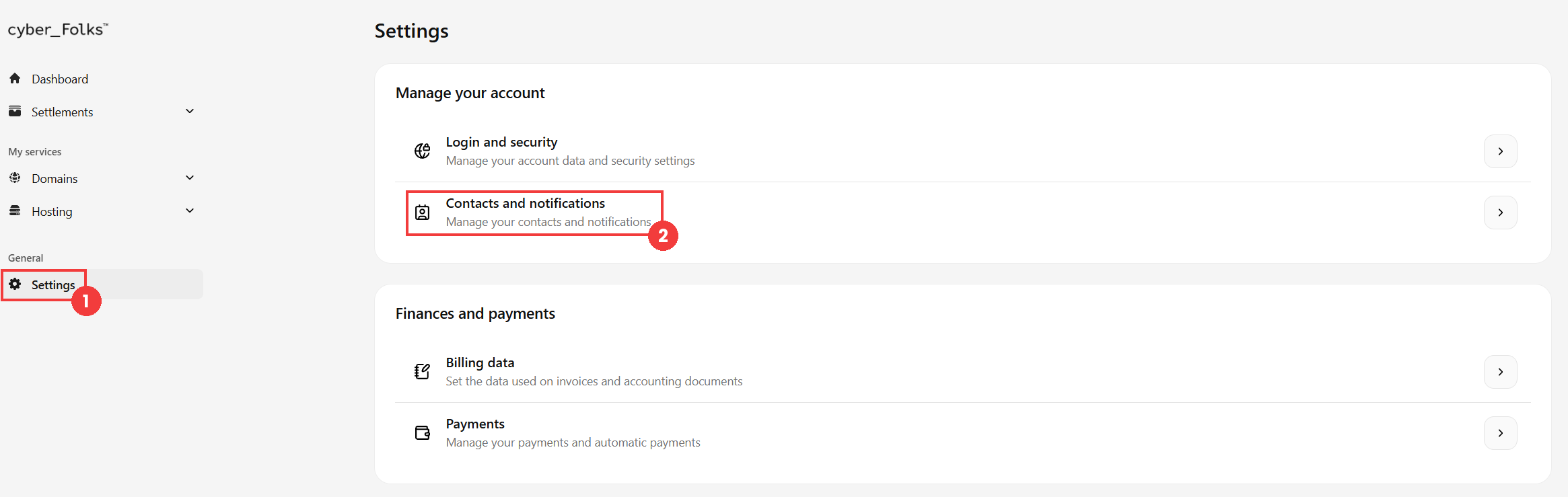
- Go to Settings (1), then click Contacts and notifications (2).
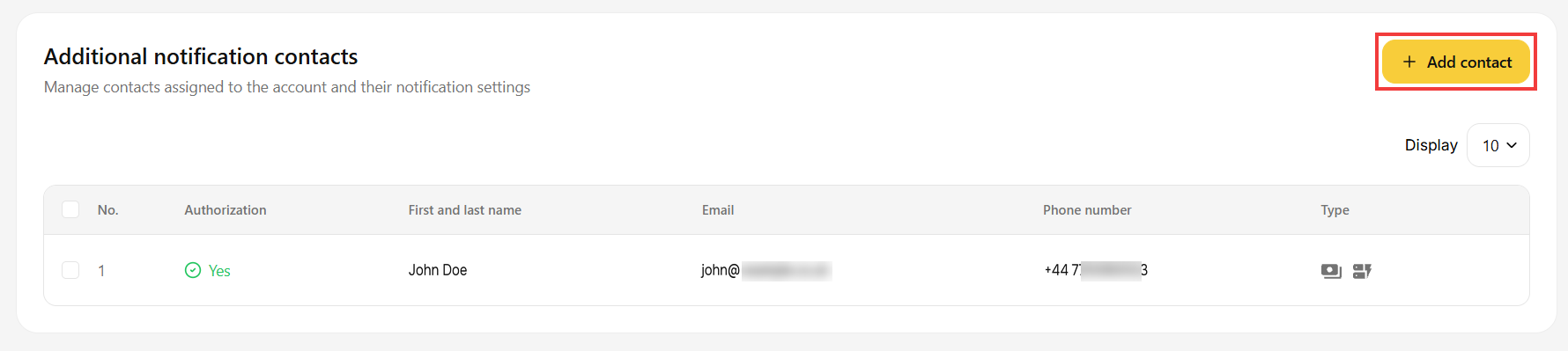
- In the Additional notification contacts section, click the Add contact button.
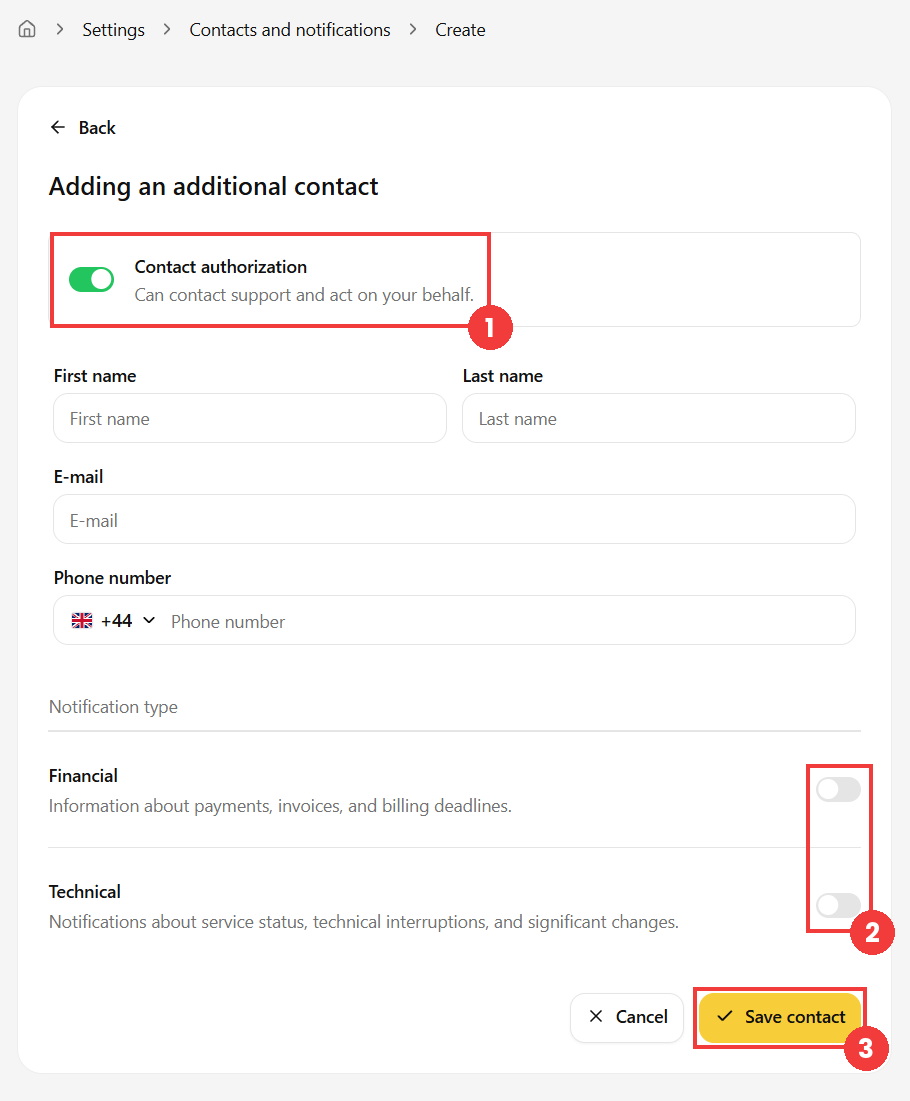
- In the next window, fill in the form. Remember to enable the Contact authorization option (1). You can also enable the Financial and Technical notifications, which will be sent to this contact (2). Save with the Save contact button (3).
- Go to Settings > Contacts and notifications.
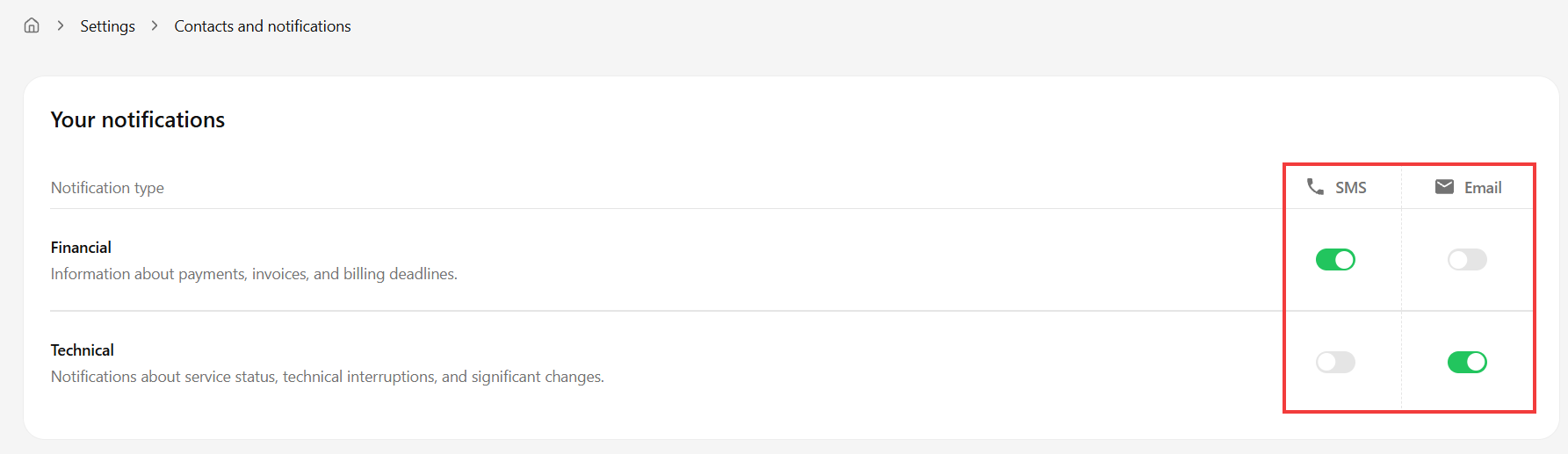
- The Your notifications section contains the notification settings of the main contact: you can turn the Financial and Technical notifications on or off separately for Email and SMS.
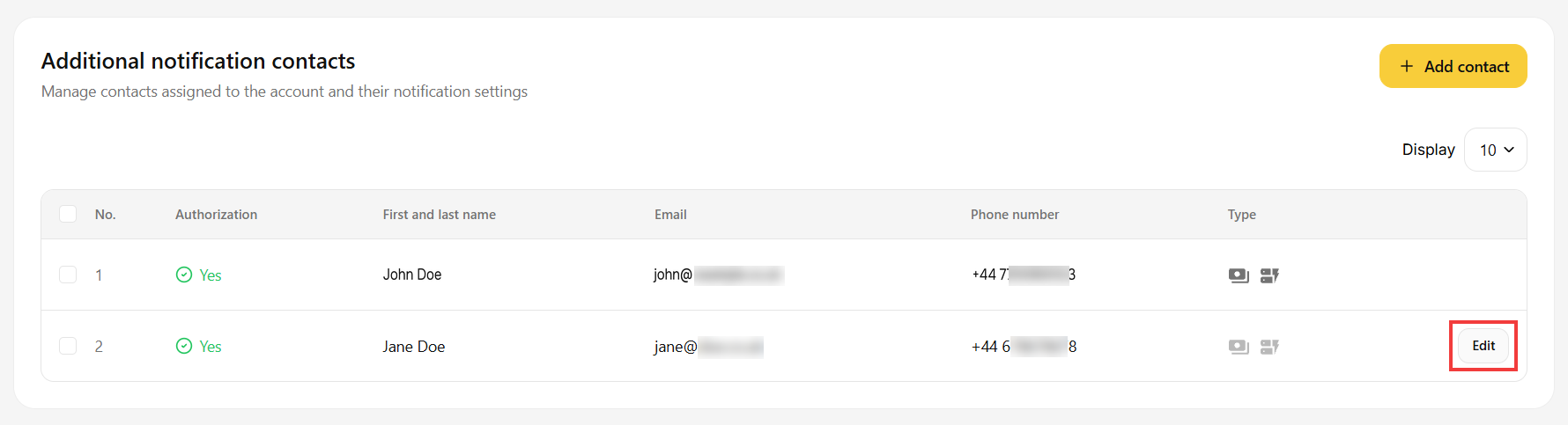
- Further down, the Additional notification contacts section lists all contacts, both main and additional. To change the notifications of an additional contact, click the Edit button next to that contact.
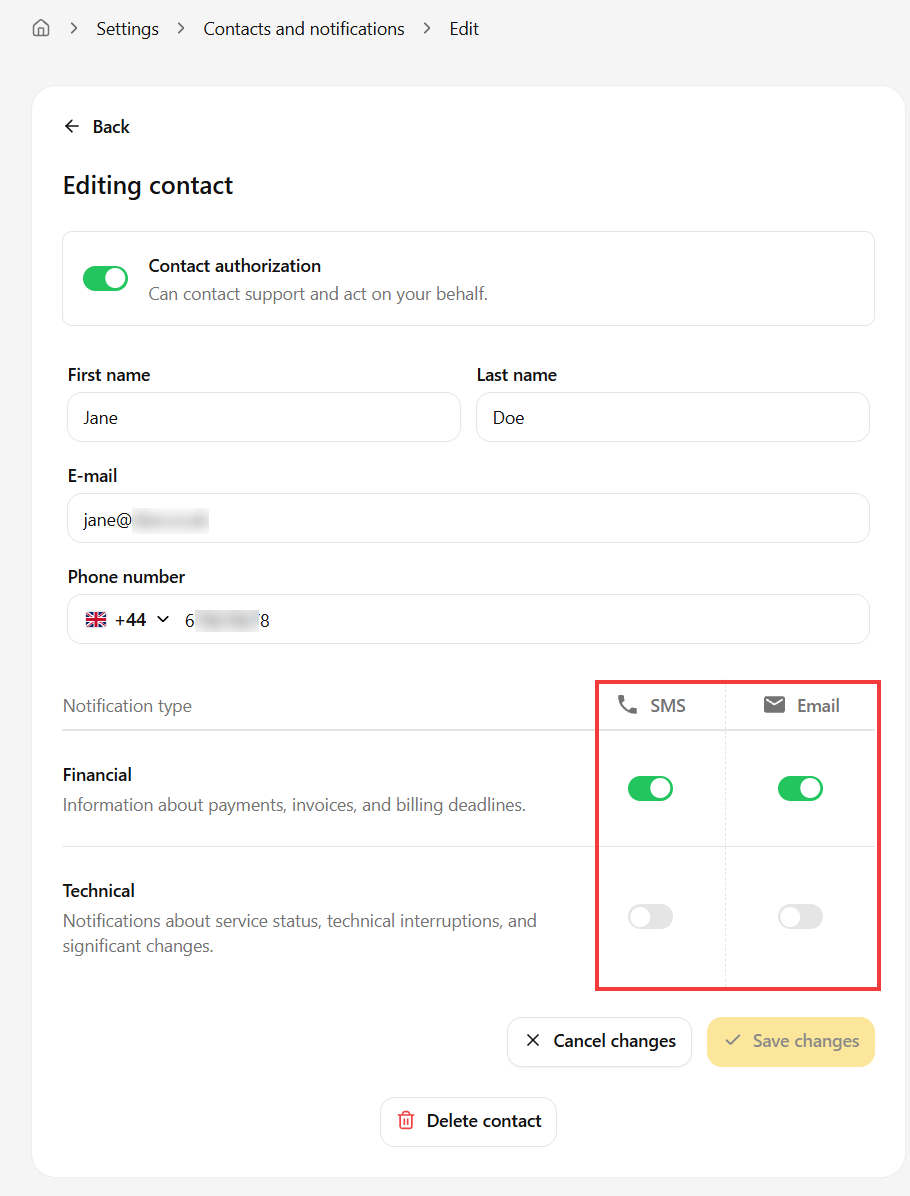
- In the next window, select the notifications you want using the toggles. There is no need to save: each toggle change is saved automatically.
 Good to know! Once you are logged in to the Client Panel, you can also ask our assistant robo_Folks for help – it can perform many operations for you.
Add an additional authorized email address
Done! The new email address is now authorized and visible in the system. The rest of this guide explains how to configure notifications.
Change financial and technical notification settings
The Save changes button is only used to save the data entered in the form fields (first name, last name, email, phone number).
Done! From now on, you will receive notifications according to the settings you have chosen.
