


Option 1: You have access to the Client Panel
- Log in to your Client Panel: https://cyberfolks.com/client-login-panel/
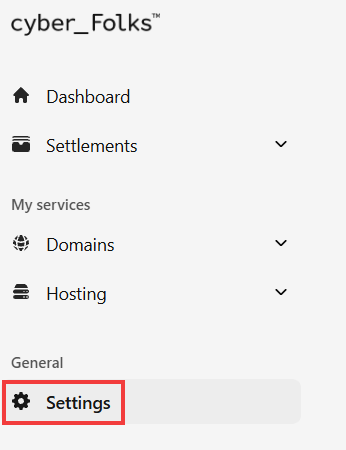
- In the left-hand menu, go to Settings.
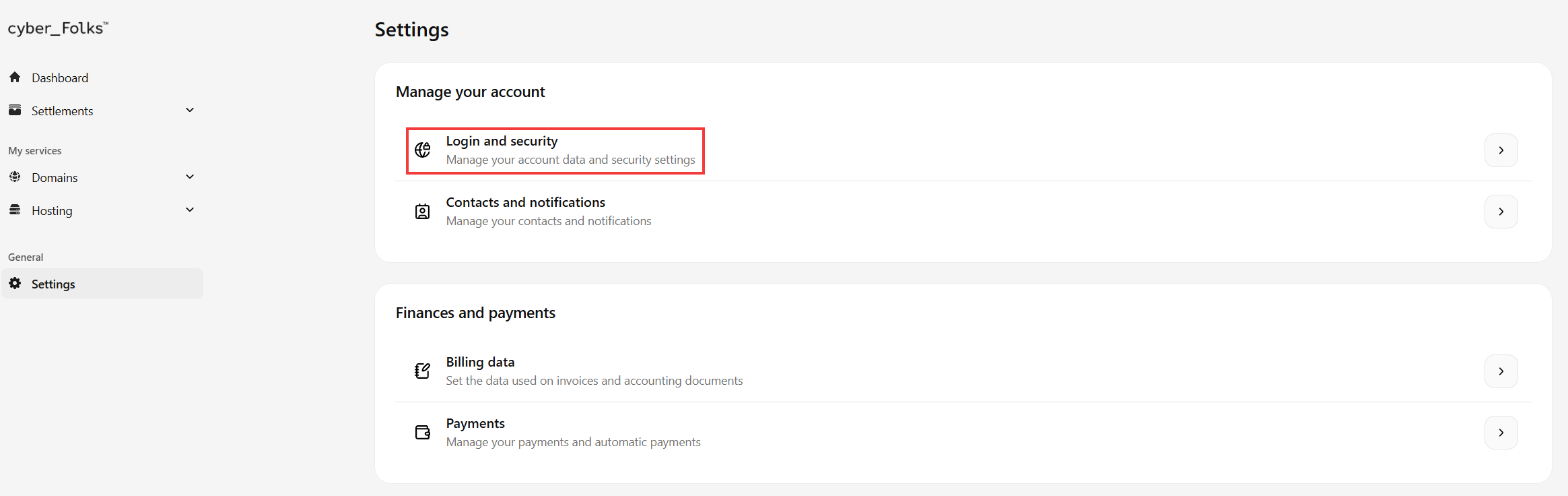
- In the next window, click Login and security.
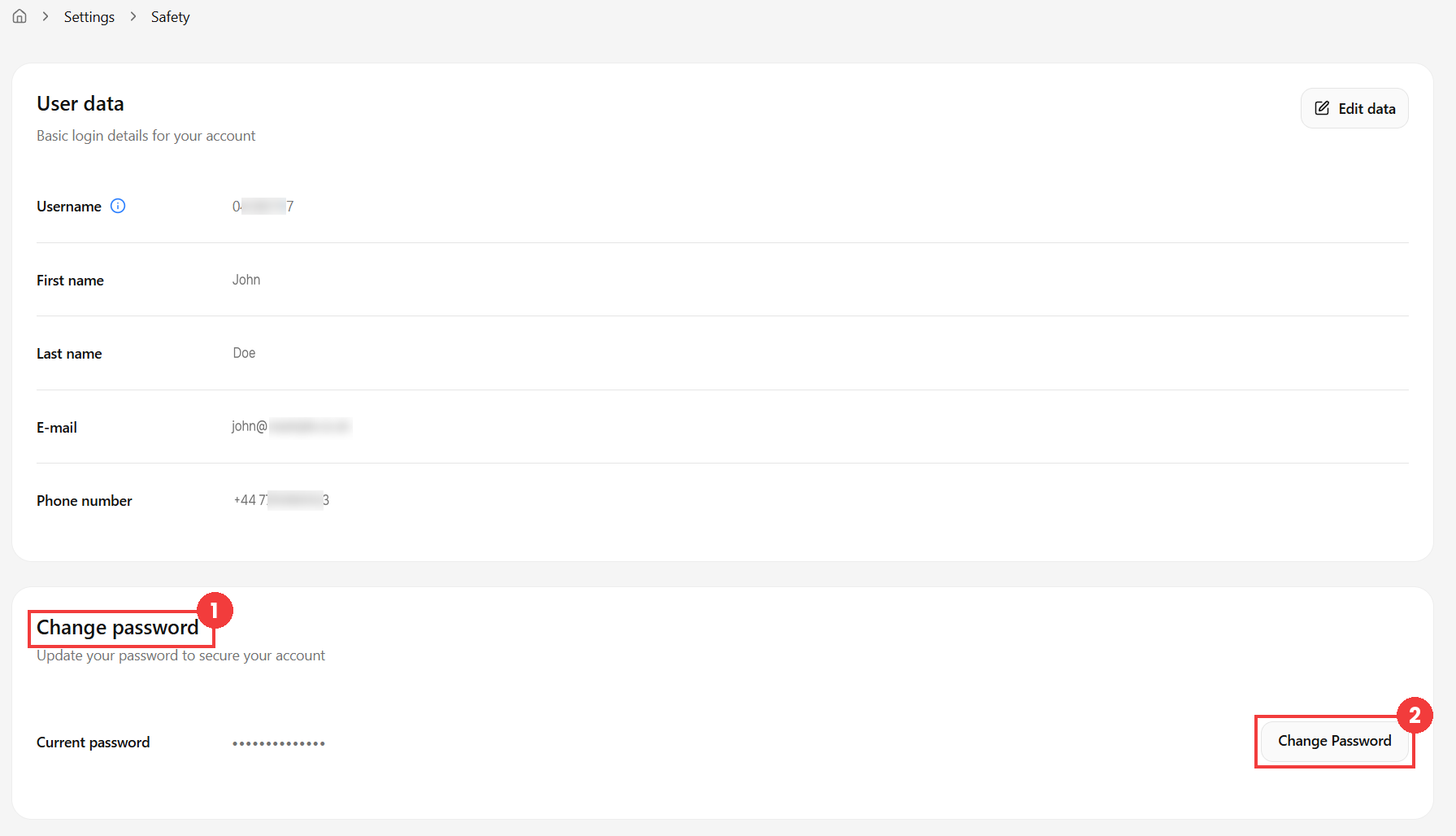
- Then find the Change password (1) section and click the Change Password button (2).
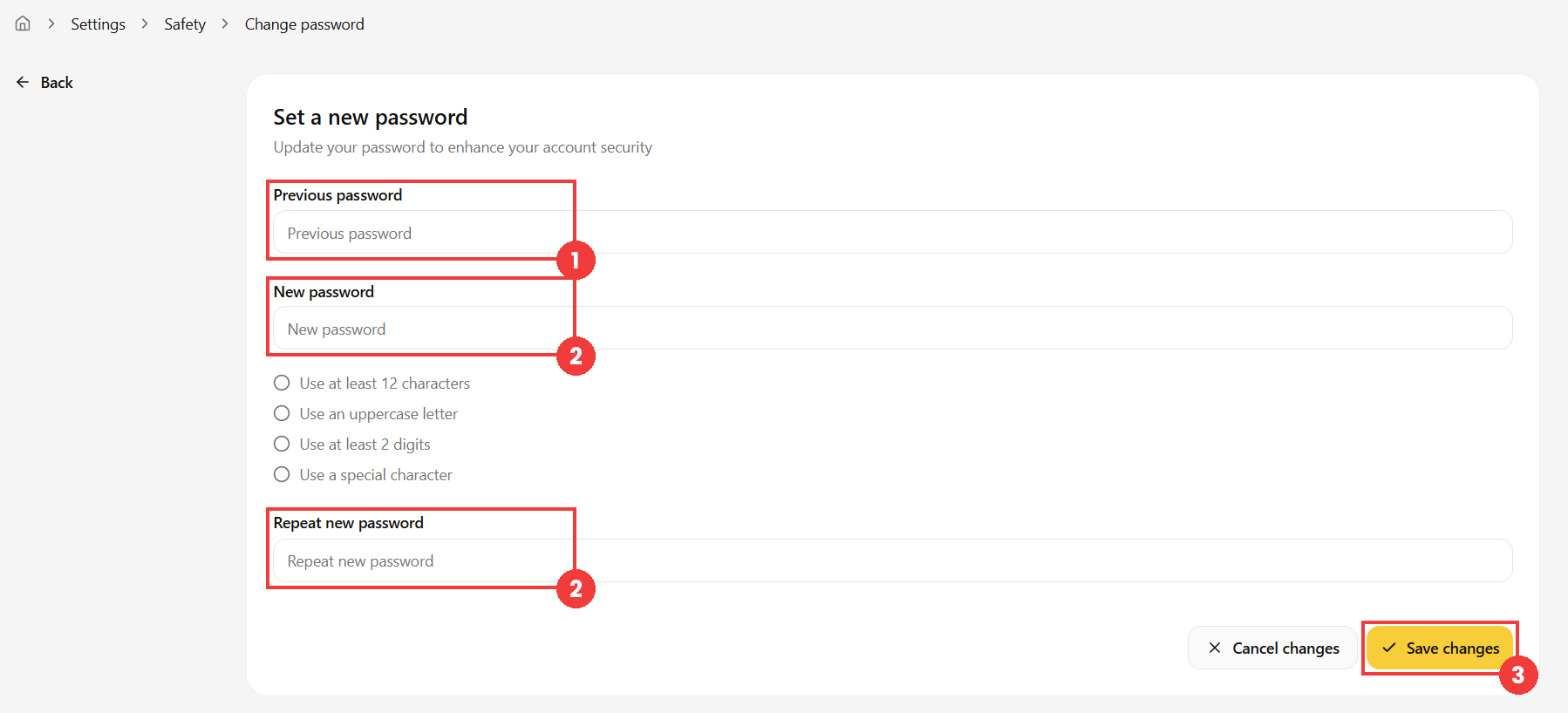
- In the next window, enter your current password in the Previous password field (1), then enter the new password twice (2).
 Good to know! Once you are logged in to the Client Panel, you can also ask our assistant robo_Folks for help – it can perform many operations for you.
Attention! The new password must meet the security requirements displayed in the Client Panel.
Then save the change with the Save changes button (3).
Done! Your password has been changed. Use the new password the next time you log in.
Option 2: You do not have access to the Client Panel
In this case, use the password reset feature described in the guide How to recover access to the client area: https://cyberfolks.com/help/how-to-recover-access-to-the-client-area/
