

An email account lets you send and receive messages from an address on your own domain. You can easily create one directly in your hosting panel. Here is how to do it, step by step.
To create a new email account:
- Log in to your hosting panel: Log in to your new hosting service
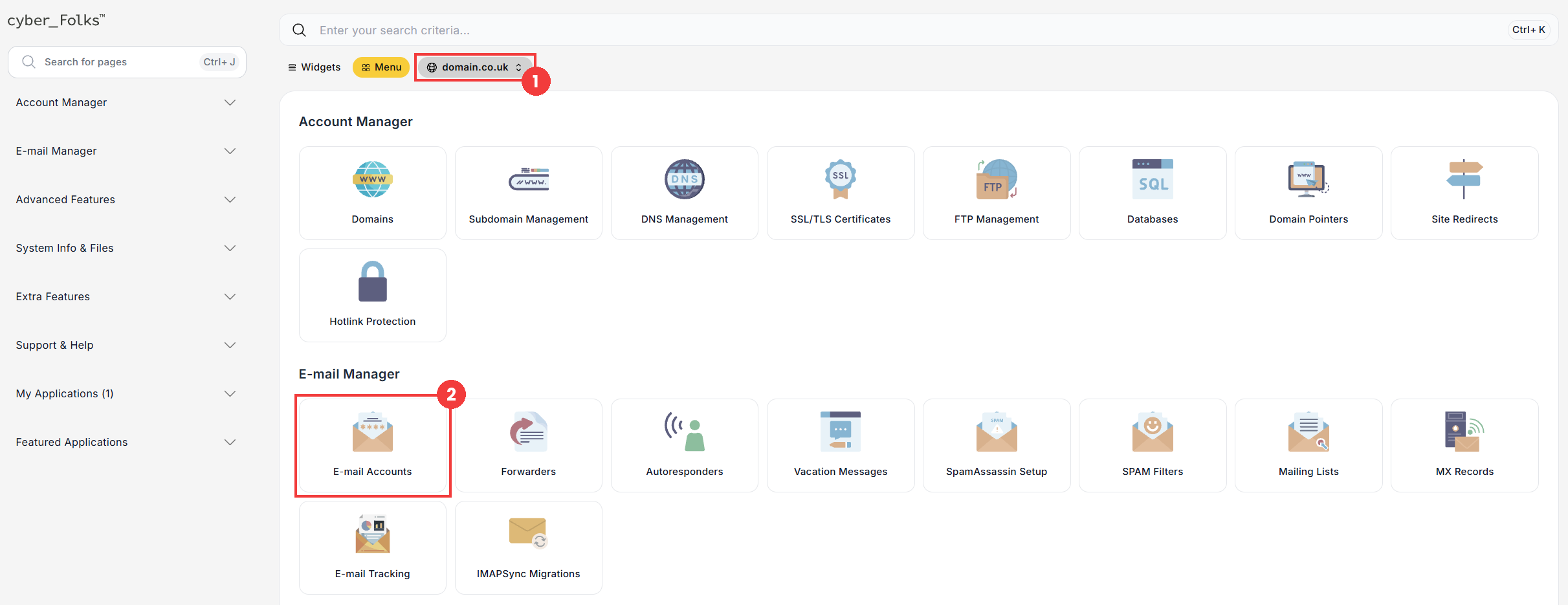
- If you have several domains, select from the list the one in which you want to create the email account (1). Then open the E-mail Accounts tab (2).
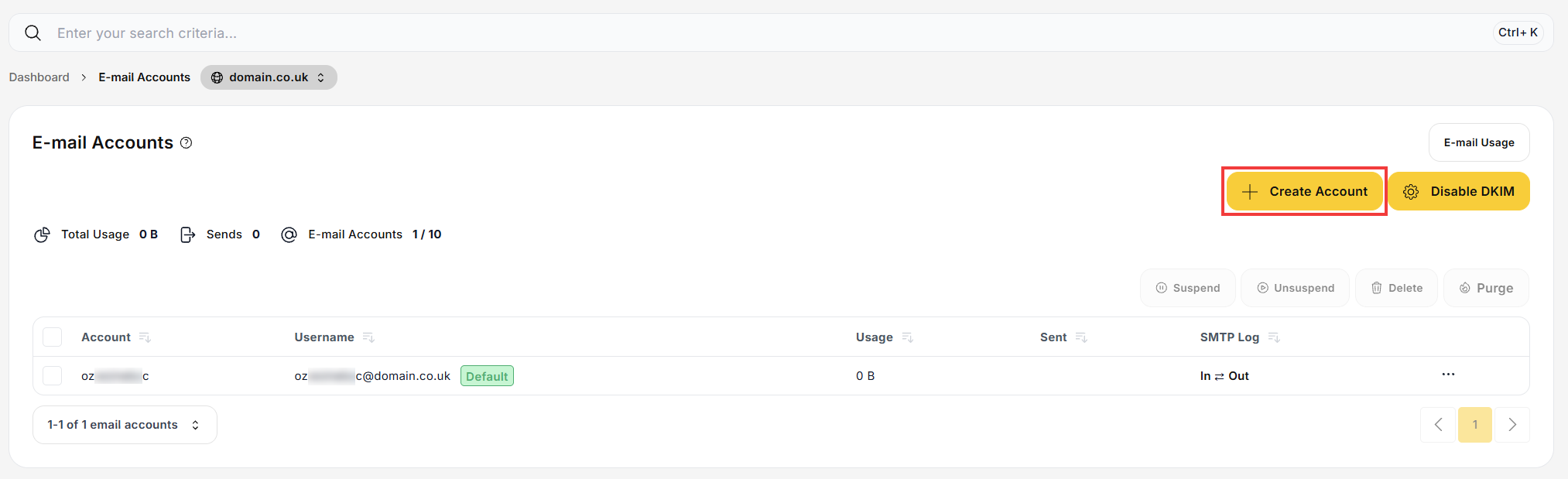
- In the next window, click the Create Account button.
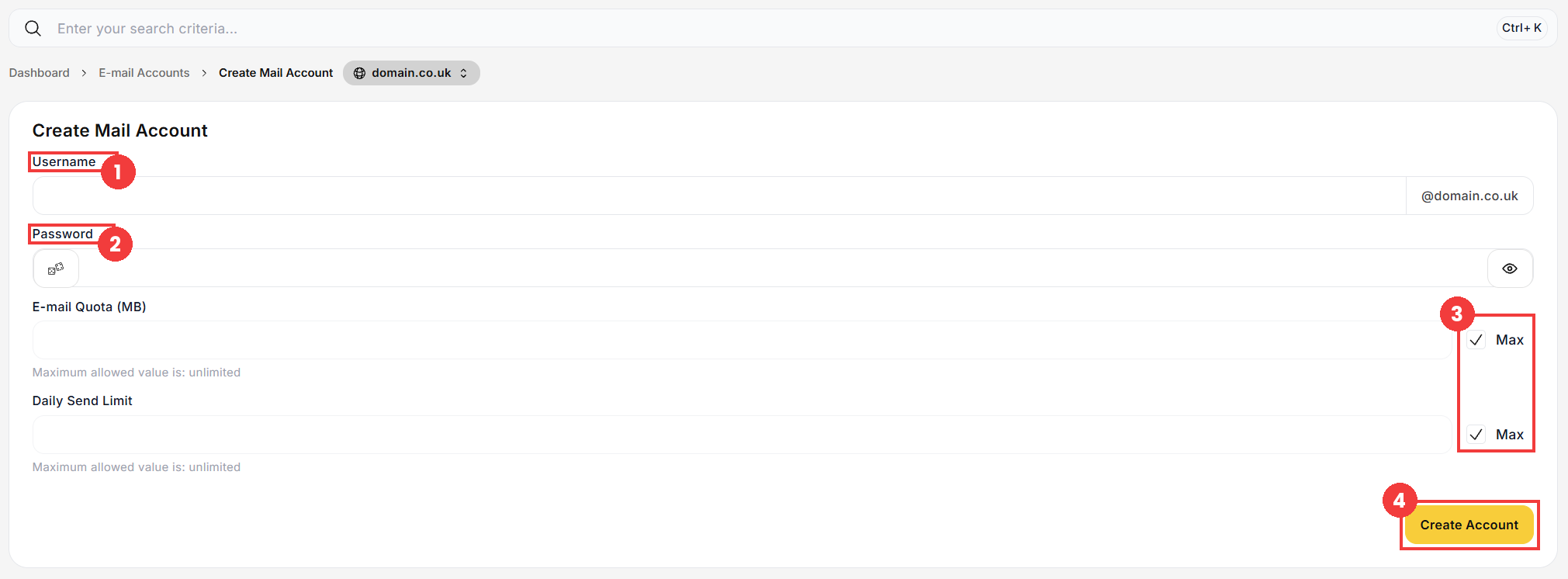
- The email account creation form appears. Fill in the Username (1) and Password (2) fields. As the username, enter only the part of the address before the @ sign: the rest of the address is added automatically.
- Confirm with the Create Account button (4).
 Good to know! Once you are logged in to the panel, you can also ask our assistant robo_Folks for help – it can perform many operations for you.
You can also limit the capacity of the email account (E-mail Quota (MB)) and the number of messages sent per day (Daily Send Limit) (3). By default, no limit is active (the Max option is checked). To set a limit, uncheck Max next to the relevant setting and enter the value you want.
Note: to log in to your email account, whether in an email client or in the browser, always use the full email address (for example account@domain.co.uk).
